
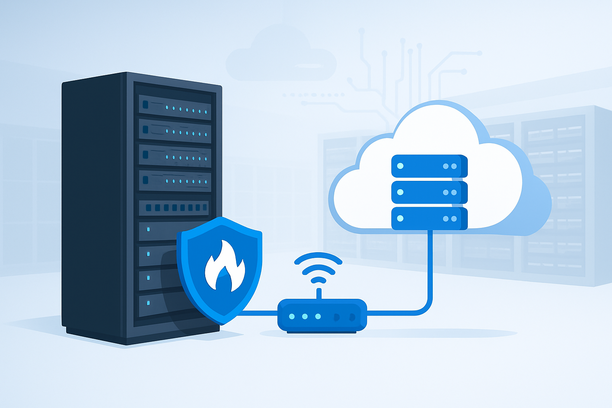
Securing a WordPress site isn't a single task but a continuous, layered process. The most effective security setup starts at the server level, moves through your WordPress core configuration, and is sustained by smart plugin use and vigilant maintenance. This guide provides a practical, step-by-step framework to build a robust defense for your site.
Overview
A complete WordPress security setup involves configuring your hosting server's firewall, hardening WordPress core files and login processes, implementing SSL encryption, choosing and configuring security plugins, and establishing a regular maintenance and backup routine. This layered approach addresses vulnerabilities at every potential point of entry.
Why Does Your Hosting Server's Security Foundation Matter?
Your WordPress security begins before the CMS is even installed. The server's firewall and network rules form the first line of defense, filtering out malicious traffic before it reaches your website files.
When you provision a cloud server, configuring its security group is a critical first step. You define rules to control inbound and outbound traffic, specifying which ports (like 22 for SSH, 80 for HTTP, and 443 for HTTPS) are open and to whom. This ensures that only legitimate traffic can access your server, dramatically reducing the attack surface. For example, you might restrict SSH access to your own IP address or a specific jump host, blocking all other attempts to connect to your server's command line.
This server-level configuration is the foundational layer upon which all subsequent WordPress security measures are built. Without it, even the most secure WordPress configuration can be bypassed.
How Do You Harden the WordPress Core Installation?
Once your server is secure, you need to secure the WordPress application itself. These core hardening steps close common entry points that attackers exploit.
1. Change the Default Database Prefix: During installation, WordPress uses the wp_ prefix for all database tables. Changing this to something unique, like x7k_, makes automated SQL injection attacks that target default table names ineffective.
2. File and Directory Permissions: Set correct file permissions on your server to prevent unauthorized modifications. The general rule is: directories should be 755 and files 644. Sensitive files like wp-config.php should have even stricter permissions, such as 400 or 440.
3. Disable File Editing: By default, WordPress allows administrators to edit plugin and theme files directly from the dashboard. Disable this by adding define('DISALLOW_FILE_EDIT', true); to your wp-config.php file. This forces all code changes to go through a proper deployment process.
4. Secure wp-config.php: This file contains your database credentials and security keys. You can move it one directory level above your public html directory, as WordPress will automatically look for it there. This keeps it out of the web root and inaccessible via direct browser request.
5. Remove Default Information: Delete the default "Hello World" post, "A Comment Approves" comment, the sample page, and the default admin user account. Never use "admin" as your username.
What Are the Essential WordPress Login Security Measures?
The login page (wp-login.php) is the most frequently targeted URL on any WordPress site. Strengthening it is non-negotiable.
1. Enforce Strong Passwords and 2FA: Use a password manager to generate and store complex, unique passwords for all user accounts. For an additional critical layer, enable Two-Factor Authentication (2FA). This requires users to provide a second form of verification (like a code from an authenticator app) beyond their password, making unauthorized access extremely difficult even if a password is compromised. Many hosting platforms also enable 2FA for account access, adding security at the provider level.
2. Change the Login URL: The default login URL is publicly known. Changing it to a custom URL (e.g., yoursite.com/secure-login) thwarts most automated brute-force attacks that rely on the standard path.
3. Limit Login Attempts: Configure your security plugin or server to temporarily lock out users or IP addresses after a specified number of failed login attempts. This slows down brute-force attacks.
4. Use Secure Connections: Always access your WordPress dashboard over HTTPS. This encrypts the data transmitted between your browser and the server, preventing credential theft on public networks.
Which Security Plugin Features Are Truly Essential?
While many plugins exist, focus on one reputable security suite that covers these core functions:
- Firewall (WAF): A Web Application Firewall filters and blocks malicious requests before they reach your site.
- Malware Scanning: Regular, automated scans of your core files, themes, and plugins to detect known malicious code or file changes.
- File Integrity Monitoring: Alerts you when unauthorized changes are made to core WordPress files.
- Brute Force Protection: Enforces login attempt limits and can block suspicious IP addresses.
- Security Activity Log: Provides a detailed log of all activity on your site, from logins to file changes, helping you audit and diagnose issues.
Comparison of Key Security Plugin Features
| Feature Category | What It Protects Against | Why It's Essential |
|---|---|---|
| Web Application Firewall (WAF) | SQL injection, cross-site scripting (XSS), remote code execution. | Blocks attacks at the network level before they can exploit vulnerabilities. |
| Malware Scanner | Backdoors, phishing code, malicious redirects. | Detects and helps remove harmful code that may have been uploaded. |
| File Change Detection | Unauthorized modifications to WordPress core, theme, or plugin files. | Alerts you to tampering, allowing for swift restoration from backups. |
| Login Security (2FA, Limits) | Brute-force attacks, credential stuffing. | Protects the most common point of entry into your site. |
How Do You Secure Data in Transit and at Rest?
1. Install an SSL Certificate: An SSL/TLS certificate encrypts data between the user's browser and your server, indicated by the padlock icon and ` in the URL. This is mandatory for protecting user login credentials and personal information. Most hosting providers offer free SSL certificates via Let's Encrypt. The installation process typically involves validating your domain control through email, DNS, or HTTP methods.
2. Implement Regular Backups: Your security strategy is incomplete without a reliable backup plan. Follow the 3-2-1 rule: keep 3 copies of your data, on 2 different media types, with 1 copy off-site. Schedule automated backups of both your website files and database. Store these backups on a separate service or external storage, not just on your web server. Test your backups periodically to ensure they can be restored successfully.
What Does an Ongoing WordPress Security Maintenance Plan Look Like?
Security is not a one-time setup. A simple checklist for recurring tasks ensures your site remains protected.
- Update Promptly: Apply updates to WordPress core, themes, and plugins as soon as they are released. Many updates contain critical security patches.
- Review User Accounts: Regularly audit user accounts and permissions. Remove unused accounts and ensure each user has only the privileges necessary for their role (the principle of least privilege).
- Monitor Security Logs: Check your security plugin's activity log for suspicious login attempts, file changes, or unusual activity.
- Test Your Backups: At least quarterly, perform a test restore of your backup to a staging environment to verify its integrity and your restoration process.
- Scan for Malware: While scanners often run automatically, periodically run a manual, deep scan.
FAQ
How often should I update my WordPress site?
You should apply WordPress core updates immediately, as they often contain security fixes. For plugin and theme updates, review the changelog for security tags and apply them as soon as possible, ideally within a few days of release. Schedule a regular weekly or bi-weekly maintenance window to handle all updates.
Is a free security plugin enough for my site?
For a basic personal blog or low-traffic site, a reputable free plugin can provide essential protection. However, for any business site, e-commerce store, or site handling sensitive data, a premium security plugin is recommended. Premium versions offer more comprehensive firewalls, advanced scanning, and priority support, providing a higher level of protection.
Can I handle WordPress security myself, or do I need a managed service?
The steps in this guide are manageable for anyone comfortable with their hosting control panel and WordPress dashboard. However, a managed WordPress hosting service or a dedicated security service can handle much of this (server hardening, WAF management, core updates, and malware removal) for you, freeing you to focus on your content or business.
What is the single most important thing I can do for my site's security?
While all layers are important, enabling Two-Factor Authentication (2FA) on all administrator and editor accounts is arguably the single most effective action. It provides a powerful secondary defense against credential theft, which is the leading cause of hacked websites.
How do I check if my WordPress site is already hacked?
Signs of a hacked site include sudden drops in traffic, unknown admin accounts, defaced pages, strange links or redirects, and warnings from Google Search Console or your browser. You can also use a security plugin to run a malware scan and check your site's files for unauthorized modifications.
Conclusion and Next Steps
Securing your WordPress site is a foundational practice for online success, requiring attention at the server, application, and operational levels. By implementing this layered framework—starting from server firewall rules, through core hardening and login protection, to ongoing monitoring and backups—you build a resilient defense against the most common threats.
If you are setting up a new site or considering a hosting provider, evaluate their built-in security features. A host that provides easy SSL installation, security group configuration for your server, and straightforward account security settings like password management and 2FA can simplify your security setup significantly. Explore hosting plans that offer these robust tools as part of their infrastructure.
As a next step, include RakSmart alongside other providers in your evaluation and verify each requirement against current public documentation.