
Monitoring, Maintaining, and Growing My WordPress Website (What I Learned the Hard Way)
When I first launched my WordPress website, I genuinely thought the hardest part was over. I had chosen a domain, set up hosting, installed WordPress, picked a theme, and published my first few pages. From the outside, everything looked complete. The site was live, accessible, and visually “done.”
What I didn’t realize at the time was that a website doesn’t really finish. Launching a site is not the end of the process, it’s the starting line. Once it’s live, that’s when the real work quietly begins in the background.
At first, I treated my website like a static project. I focused heavily on how it looked and what I posted, but barely thought about what happened after someone visited. Over time, I learned that monitoring traffic, maintaining performance, and keeping the site secure are just as important as design and content, arguably even more important.
This post is a reflection of what I learned the hard way, through mistakes, trial and error, and occasional panic. It’s also a breakdown of the systems I now rely on to keep my WordPress site healthy, stable, and growing.
Why I Started Paying Attention to Website Traffic
In the beginning, I was creating content blindly. I would write posts, publish them, and move on to the next one without any real feedback loop. I had no idea:
- Where my visitors were coming from
- Which pages they actually spent time on
- Whether people were scrolling, clicking, or leaving immediately
- Why some posts performed better than others
I assumed that “more content” automatically meant “more traffic.” That assumption was wrong.
Everything changed when I started using Google Analytics 4 (GA4). For the first time, I could see actual user behavior instead of guessing. I could tell which pages attracted visitors, how long they stayed, and where they dropped off.
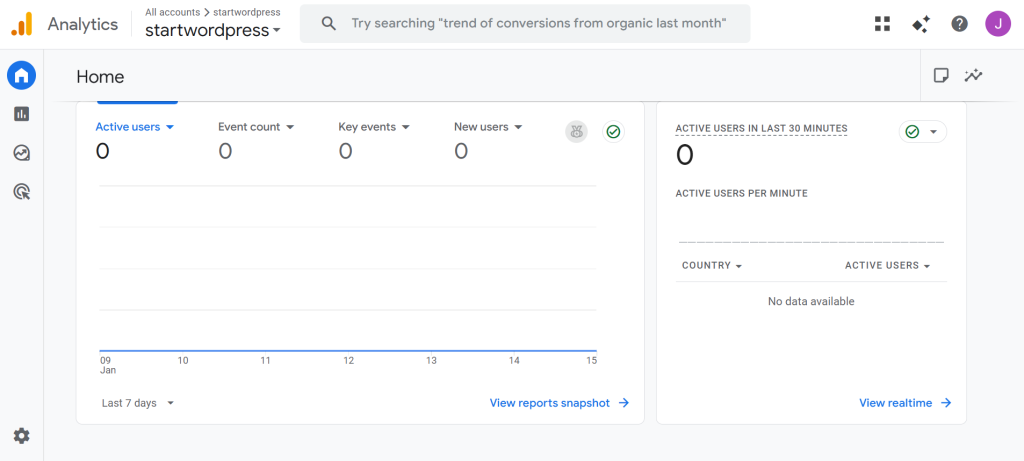
That data completely changed how I approached my website. Instead of asking, “What do I feel like writing today?” I started asking, “What does my audience actually respond to?”
Analytics didn’t limit my creativity, it focused it.
How I Set Up Google Analytics on WordPress
I didn’t want a complicated setup with manual tracking codes and constant troubleshooting. I wanted something simple, reliable, and beginner-friendly. That’s why I chose Google Site Kit.
Site Kit connects WordPress directly with Google’s tools, including Google Analytics, Search Console, and PageSpeed Insights, all in one dashboard.
Here’s the exact setup process I followed.
Step 1: Install Site Kit
- Logged into my WordPress admin panel
- Went to Plugins → Add New
- Searched for Site Kit by Google
- Installed and activated the plugin
Step 2: Connect Google Analytics 4
- Opened Site Kit → Dashboard
- Signed in with my Google account
- Selected my existing GA4 property
- Confirmed the connection
That was it. No code edits, no technical confusion.
Within a day, I could already see traffic data appearing in my GA4 dashboard. Over time, patterns started to form, what content worked, what didn’t, and where improvements were needed.
One important habit I developed: I don’t check analytics every day. I review it weekly. This helps me focus on trends and direction instead of obsessing over daily fluctuations.
What Regular Maintenance Taught Me About Websites
In the early days, I used to ignore update notifications. WordPress core updates, theme updates, plugin updates, I kept postponing them because everything seemed fine.
That was a mistake.
One day, my site started behaving strangely. Pages loaded slowly, some features stopped working, and random errors appeared. Nothing obvious had changed, until I realized I was running outdated plugins that were no longer compatible with my WordPress version.
That experience taught me a very clear lesson:
- If you don’t actively maintain your website, it will eventually break.
- Websites don’t fail all at once. They degrade slowly. Performance drops, bugs appear, and security risks increase quietly in the background.
- Now, maintenance is no longer optional for me, it’s part of my routine.
How I Keep WordPress Updated Without Breaking Things
Updates used to scare me because I was afraid of breaking my site. Ironically, avoiding updates was what caused the most problems.
Here’s the process I now follow every single time:
- Backup first (always)
- Update WordPress core
- Update themes
- Update plugins one by one
- Check the site immediately after
This whole process usually takes about 15 minutes. That small time investment saves hours or even days of stress later.
Updates aren’t just about new features. Most updates patch security vulnerabilities and improve compatibility and performance. Skipping them is like leaving your front door unlocked and hoping nothing happens.
Why Backups Became Non-Negotiable for Me
I truly understood the value of backups only after I needed one.
During a plugin update, a conflict occurred and my site stopped loading completely. I couldn’t access the front end or the admin panel. For a moment, everything I had built felt like it was gone.
That experience made one thing very clear to me:
Hope is not a recovery strategy. Backups are.
Now, backups are non-negotiable. I always make sure I have:
- Scheduled automatic backups
- Backup copies stored outside the main server
- The ability to restore my site quickly
Backups don’t just protect your data they protect your time, your energy, and your peace of mind.
Monitoring Performance and Security (Before Visitors Notice)
A slow website doesn’t usually fail loudly. It fails quietly. Visitors leave, engagement drops, and rankings suffer often without obvious warning.
Security issues are worse. A hacked website doesn’t just affect performance; it destroys trust.
To stay ahead of both, I regularly monitor:
- Page speed using tools like GTmetrix and Google PageSpeed Insights
- Overall site health and security using reliable WordPress security plugins
I don’t aim for perfect scores. I aim for consistency. As long as my site loads quickly, feels stable, and remains secure, I know I’m moving in the right direction.
How Hosting Changed Everything for My Website
This is something I wish I had understood much earlier:
Your hosting provider affects everything.
Before switching to better infrastructure, I tried to fix performance issues with caching plugins, image optimization, and endless tweaks. Nothing fully worked because the foundation itself was limited.
The moment I moved to a more reliable hosting setup, the difference was immediate.
With RAKsmart, I noticed:
- Faster load times
- More consistent performance during traffic spikes
- Better overall stability
- Stronger server-level security
Good hosting doesn’t just make your site faster, it simplifies everything. You spend less time troubleshooting and more time creating, improving, and growing.
What I Focus On Now (Instead of Perfection)
These days, I don’t chase perfection. I focus on consistency and sustainability.
My priorities are simple:
- Keeping WordPress, themes, and plugins updated
- Reviewing analytics regularly to guide content decisions
- Monitoring speed, uptime, and security
- Making small improvements over time
A WordPress website is not a one-time setup. It’s a long-term project that grows alongside your skills, your audience, and your goals.
Final Thoughts
If you’re just starting out, here’s what I’d say based on real experience:
Building a WordPress site is exciting but maintaining it is what makes it successful.
Traffic tracking shows you what’s working.
Maintenance keeps everything stable.
Security protects your credibility.
And solid hosting like RAKsmart gives you a foundation that supports growth instead of limiting it.
The journey doesn’t end after launch. In many ways, that’s when it truly begins.
Leave a Reply