
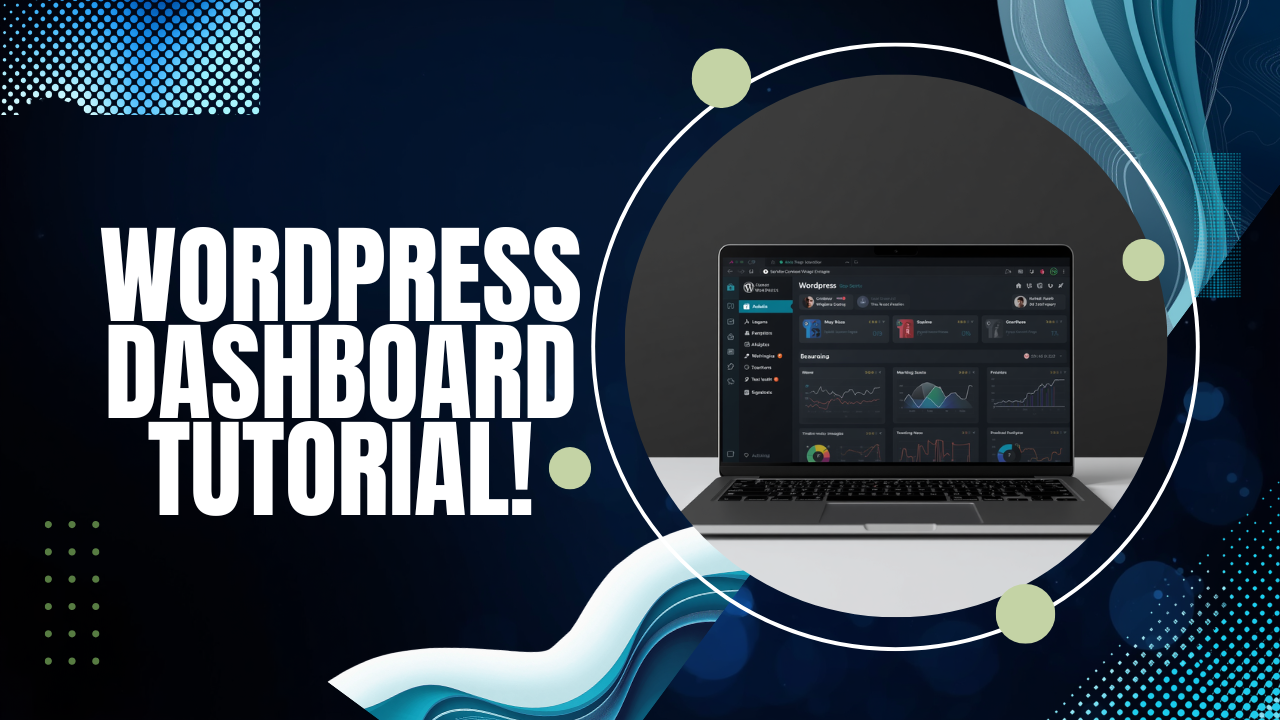
Overview
The WordPress dashboard, also known as the admin area or wp-admin, is the central command hub where you control every aspect of your website. It is not a feature you buy separately; it is the powerful backend interface that is automatically created when you install WordPress on a web server. This article explains what the dashboard is, walks you through the practical setup path to get one—including essential hosting and domain decisions—and covers the key questions every new user should ask before starting.
What Is the WordPress Dashboard and Why Does It Matter?
The WordPress dashboard is the secure login area of your website that provides a graphical user interface (GUI) for site management. Instead of editing code files via FTP, you use this dashboard to write posts, install themes, add functionality with plugins, and configure site settings from any web browser. It is the single most important tool for running your WordPress site daily.
When you see references to yoursite.com/wp-admin, that URL is the gateway to your dashboard. It matters because it centralizes control, making website management accessible to users without deep technical knowledge while still offering powerful options for developers.
The Setup Path: From Zero to Your First Dashboard
Getting to your dashboard isn’t a single-step process. It follows a clear, logical path that starts with infrastructure and ends with a login screen. Understanding this path helps you avoid confusion and make smart decisions upfront.
1. The Foundation: Choosing the Right Hosting
WordPress is software that needs a server to run on. Your hosting provider supplies that server. For most beginners and small-to-medium websites, a Virtual Private Server (VPS) offers the perfect balance of control, performance, and cost. A VPS gives you a dedicated slice of a physical server with guaranteed resources (CPU, RAM, storage) and root access, which is ideal for installing WordPress and managing it yourself.
When selecting a VPS for WordPress, key factors include:
- Server Specifications: Start with a General-Purpose type (e.g., 1 vCPU, 2-4GB RAM) for a typical blog or business site. For more dynamic sites or higher traffic, a Compute-Optimized or Memory-Optimized plan may be better.
- Operating System: Choose a Linux distribution like Ubuntu or Debian, which are widely supported and recommended for WordPress.
- Location & Network: Select a data center region geographically close to your primary audience to ensure fast load times. Providers like RAKSmart offer multiple global regions for this reason.
2. Domain and Security: Making Your Site Accessible and Safe
Before installing WordPress, you need two more pieces:
- Domain Name: This is your website’s address (e.g.,
yourbrand.com). You purchase and register this through a domain registrar. It points to your server’s IP address, allowing visitors to find you. - SSL Certificate: This encrypts the connection between your visitors’ browsers and your server, protecting data and building trust. Most hosting providers offer free SSL certificates (like Let’s Encrypt) that you can easily enable for your domain.
With hosting and a domain secured, you are ready to install the WordPress software itself.
3. Installation: Where the Dashboard is Born
There are two primary methods to install WordPress:
- One-Click Installers: Many hosting control panels (like cPanel or Plesk) or application marketplaces offer a “one-click” WordPress install. This is the fastest method for beginners. You simply fill in your site title and admin details, and the system handles the file and database setup.
- Manual Installation: This involves downloading WordPress files from the official repository, uploading them to your server via FTP, creating a MySQL database, and running the famous “five-minute install” script. This method offers more control but requires technical comfort.
Whichever method you use, the installation process creates the database and configuration that enable the dashboard. Once installation is complete, you can immediately log in.
How to Access and Use Your WordPress Dashboard
Your dashboard URL follows the standard format: https://yourdomain.com/wp-admin. You will use the administrator username and password you set during installation to log in.
Upon logging in, you’ll see the Home Screen, which provides a quick overview of your site’s status and shortcuts to common actions. The main navigation menu on the left side is your toolbox, organized into logical sections:
- Posts: Create, edit, and manage blog articles.
- Media: Upload and manage images, videos, and other files.
- Pages: Build and edit static pages like “About Us” or “Services.”
- Comments: Moderate visitor comments.
- Appearance: Change themes, customize the design, add widgets, and manage menus.
- Plugins: Add new features like contact forms, SEO tools, or e-commerce functionality.
- Users: Manage user accounts and roles.
- Tools & Settings: Perform site backups, import content, and configure core settings like site title, timezone, and permalinks (URL structure).
This intuitive interface is designed so you can manage virtually every element of your site without writing a single line of code.
Pre-Purchase Checklist: What to Verify Before Ordering Hosting
Before you commit to a hosting plan, smart buyers do their due diligence. Skipping this step can lead to surprise costs, poor performance, or support headaches. Use this checklist to evaluate your options.
| Consideration | What to Check | Why It Matters |
|---|---|---|
| Pricing & Renewal | Look beyond the introductory discount. What is the regular monthly or annual renewal rate? | Introductory offers often renew at 2x-3x the initial price. Knowing the true long-term cost prevents budget shock. |
| Server Resources | What are the guaranteed CPU, RAM, and storage? Is it shared or dedicated? | “Unlimited” claims often have hidden limits. Guaranteed resources ensure consistent performance, especially during traffic spikes. |
| Backup & Restoration | Does the provider offer automated backups? How easy is it to restore a site from backup? | Data loss can happen. Reliable, easy-to-use backups are your safety net and are non-negotiable for any serious site. |
| Support & Uptime | What are the support channels (ticket, live chat, phone)? Is there an SLA guaranteeing uptime (e.g., 99.9%)? | When things go wrong, responsive support is critical. An uptime SLA provides financial compensation if their service fails to meet promises. |
| Scalability & Limits | Can you easily upgrade your plan later? Are there bandwidth or visitor limits that could throttle your growth? | Your site may grow. A good host allows seamless plan upgrades without complex migrations or downtime. |
How WordPress Dashboard Compares to Alternatives
The concept of a web-based admin panel isn’t unique to WordPress. It’s helpful to understand how it stacks up against other common systems.
- vs. Website Builder Dashboards (Wix, Squarespace): These offer a more simplified, drag-and-drop interface locked into their proprietary ecosystem. You trade flexibility and full control for ease of use. WordPress’s dashboard offers more power and customization but has a slightly steeper learning curve.
- vs. Headless CMS Dashboards: A headless CMS (like Strapi or Contentful) separates the content management backend from the front-end presentation. Its dashboard is purely for content and data management, requiring you to build the front-end display separately. WordPress’s dashboard is a monolithic, all-in-one solution that manages both content and presentation.
- vs. E-commerce Platform Dashboards (Shopify): Shopify’s dashboard is specialized entirely for running an online store, with built-in payment processing, inventory, and order management. You can add e-commerce to WordPress via plugins like WooCommerce, which then integrates store management tools directly into the familiar WordPress dashboard.
Key Takeaway: The WordPress dashboard strikes a balance. It provides more control and flexibility than proprietary website builders while remaining more integrated and user-friendly than most custom-built or headless solutions.
Fast Answers: WordPress Dashboard Essentials
Can I access the dashboard without hosting?
No. The dashboard is part of a WordPress installation, which requires a web server to run. You must have a hosting account to install WordPress and access its dashboard.
What if I forget my dashboard password?
You can reset it directly from the login screen by clicking “Lost your password?” You will receive a reset link via email. If you also lose access to that email, you can reset it via PHPMyAdmin or ask your hosting provider for assistance.
Is the WordPress dashboard mobile-friendly?
Yes. The core dashboard is responsive and works on smartphones and tablets. Many hosts also offer mobile apps that let you manage basic site functions on the go.
How is the dashboard different from the WordPress.com dashboard?
If you use WordPress.com (the hosted service), your dashboard is similar but has more restrictions, especially on free and lower-tier plans. It limits plugin and theme uploads. With a self-hosted WordPress.org site, the dashboard offers full, unrestricted control.
Do I need to update the WordPress dashboard?
Yes. WordPress releases core updates that include new features, security patches, and performance improvements. You will see update notifications in the dashboard. It is critical to keep your WordPress core, themes, and plugins updated for security and stability.
Conclusion
Understanding the WordPress dashboard is the first step to confidently building and managing your own website. It is the powerful, user-friendly control center that turns a piece of software on a server into a fully functional site that you can shape to your vision. The path to getting there is straightforward: secure reliable hosting, connect a domain, install WordPress, and log in.
By choosing a capable hosting provider that offers easy WordPress installation and clear documentation, you can focus on creativity and content rather than technical troubleshooting. If you are ready to start this setup path, exploring a VPS hosting plan with a provider that simplifies the initial WordPress deployment is an excellent next step.