
Overview
Setting up WordPress hosting for a small business involves four core decisions: selecting the right hosting type, registering a domain, enabling SSL, and configuring your WordPress installation for performance and security. This guide walks through each step with a focus on what actually matters for a new business site, so you can launch confidently without paying for capacity or complexity you don’t need yet.
What Hosting Type Fits a Small Business WordPress Site?
The right hosting type depends on your traffic expectations, technical comfort, and budget. Most small business sites start on either shared hosting or managed WordPress hosting, then migrate to VPS or cloud hosting as traffic grows.
Shared hosting places your site on a server with many other sites. It is the cheapest option and works well for low-traffic brochure sites, but performance can suffer during traffic spikes because resources are distributed across dozens or hundreds of accounts.
Managed WordPress hosting adds server-level optimization, automatic updates, daily backups, and built-in caching specifically tuned for WordPress. It costs more than shared hosting but removes most of the maintenance burden, which matters when you would rather focus on your business than server administration.
VPS or cloud hosting gives you dedicated resources and root access. This path makes sense when you need custom server configurations, run WooCommerce with high transaction volume, or expect consistent traffic that shared hosting cannot sustain.
| Hosting Type | Typical Monthly Cost | Best For | Key Trade-Off |
|---|---|---|---|
| Shared Hosting | $3–$15 | Brochure sites, under 5K monthly visitors | Shared resources, slower under load |
| Managed WordPress | $15–$60 | Growing business sites, blogs | Higher cost, less server control |
| VPS / Cloud | $20–$100+ | WooCommerce, high-traffic sites | Requires technical setup and maintenance |
For most small businesses launching their first WordPress site, managed WordPress hosting or a well-configured shared hosting plan offers the best balance of cost, performance, and simplicity.
What Does the Setup Path Actually Look Like?
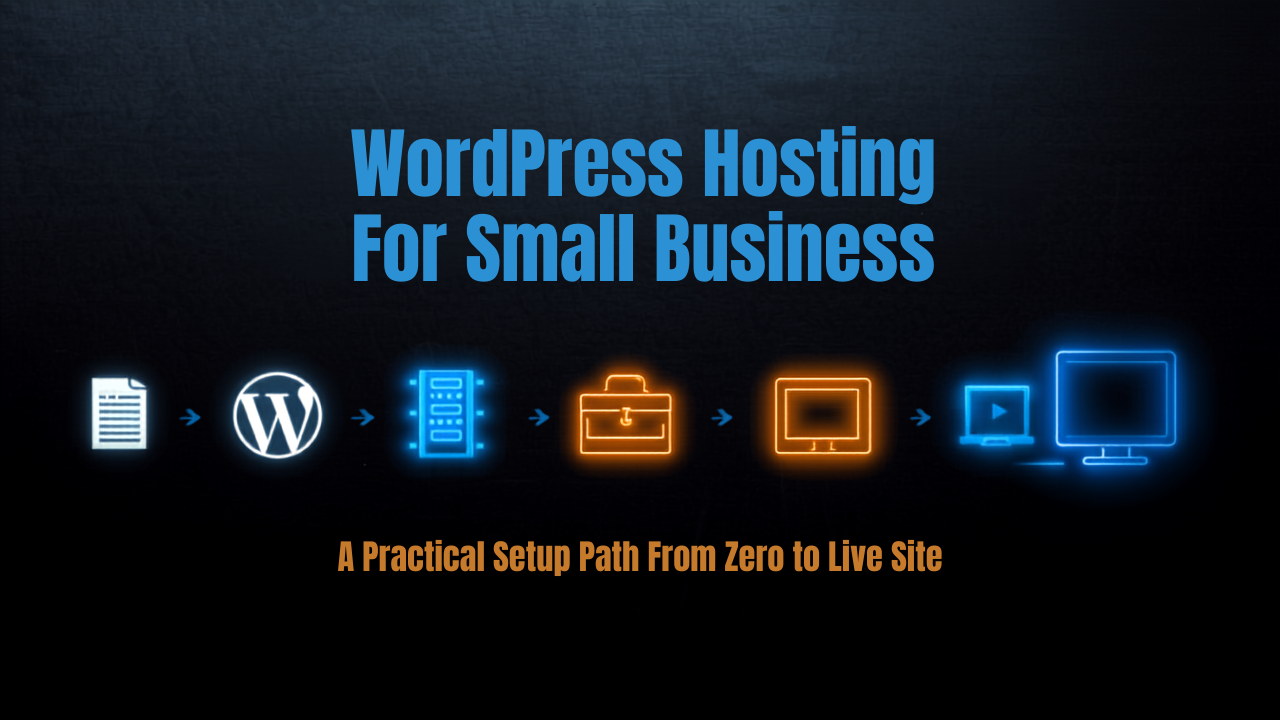
The practical setup path for WordPress hosting follows five sequential steps: choose a hosting provider, select a plan, register a domain, install WordPress, and configure essential settings.
Step 1: Choose a hosting provider. Look for providers that offer WordPress-optimized server environments, one-click installation tools, and responsive support. Some providers include an application marketplace where you can deploy WordPress alongside MySQL or other database options with a single click, which eliminates manual database and file setup entirely. RAKSmart’s Application Marketplace provides this kind of guided WordPress deployment path, which is especially useful for users who want a fast route to a working site without touching the command line.
Step 2: Select a plan. Start with the lowest tier that meets your current needs. You can upgrade later as traffic grows. The critical specs to evaluate are storage (aim for at least 10GB for a content-rich site), bandwidth (unmetered is standard for most shared and managed plans), and the number of sites you can host under one account.
Step 3: Register a domain. Your domain is your business address on the web. Most hosting providers let you register a domain during signup, or you can use a separate registrar and point the DNS to your hosting account. Choose a .com if available, keep the name short, and avoid hyphens.
Step 4: Install WordPress. Most hosting panels include a one-click WordPress installer. If your host uses cPanel, Softaculous, or a proprietary dashboard, the installation typically takes under five minutes. You will set an admin username and password during this step. Use a strong, unique password and change the default admin username if possible.
Step 5: Configure essential settings. After installation, set your site title and tagline in Settings > General, configure permalinks to “Post name” for SEO-friendly URLs, install a lightweight theme, and activate essential plugins for security, caching, and backups.
What Domain and SSL Basics Should You Know?
A domain name costs roughly $10–$15 per year for a .com. Many hosting providers offer a free domain for the first year when you purchase an annual hosting plan, which reduces your upfront cost.
SSL certificates encrypt the connection between your visitors and your server. Google also uses HTTPS as a ranking signal, so SSL directly affects your search visibility. Most reputable hosting providers now include free SSL through Let’s Encrypt. If yours does not, that is a red flag about the provider’s modernity and attention to security defaults.
For a small business site, you need at minimum:
- A custom domain (not a subdomain of your hosting provider)
- A valid SSL certificate (HTTPS enabled on all pages)
- DNS properly configured to point to your hosting server
These three elements form the foundation. Without them, your site looks unprofessional and loses credibility with both visitors and search engines.
What First-Site Decisions Actually Matter?
The decisions that carry the most long-term impact are your hosting provider choice, your theme selection, and your plugin strategy.
Hosting provider. Switching providers later is possible but disruptive. Choose one that offers a clear upgrade path from shared or managed hosting to VPS without requiring a full migration to a different platform or control panel ecosystem.
Theme. A lightweight, well-coded theme loads faster and creates fewer conflicts than a bloated multipurpose theme loaded with features you will never use. Resist the temptation to install a theme with 50 demo imports when you only need one clean layout. Default WordPress themes like Twenty Twenty-Four are a solid starting point.
Plugins. Install only what you need. A typical small business site requires no more than five to eight plugins: a security plugin, a caching plugin, an SEO plugin, a contact form plugin, and perhaps an analytics integration. Every additional plugin is a potential performance and security liability, so audit your plugin list regularly.
What Do Buyers Often Miss Before Ordering WordPress Hosting?
Small business owners frequently overlook four critical factors that only become apparent after purchase: introductory pricing versus renewal rates, hidden support limitations, resource restrictions, and migration difficulty.
Introductory vs. renewal pricing. Many hosting providers advertise $2.99/month introductory rates that jump to $9.99 or higher upon renewal. Calculate your actual annual cost based on the renewal price, not the promotional rate.
Support quality and availability. “24/7 support” can mean automated chatbot responses with hour-long waits for a human agent. Check whether the provider offers live phone support, what the average response time is, and whether support covers WordPress-specific issues or only server-level problems.
Resource restrictions. Shared hosting plans often enforce CPU time limits, inode caps, and memory restrictions that are not obvious until you hit them. If you plan to run WooCommerce or expect traffic spikes from marketing campaigns, confirm the plan’s resource ceiling before committing.
Migration difficulty. If you start on one provider and want to move later, some hosts charge migration fees or make the export process cumbersome. Look for hosts that offer free migration assistance or provide straightforward backup export tools.
Pre-Purchase Checklist
Use this checklist before finalizing any hosting order:
- [ ] Calculate total annual cost at renewal pricing, not introductory rates
- [ ] Confirm the plan includes free SSL and a free domain (or budget for them separately)
- [ ] Check CPU, RAM, and inode limits, not just storage and bandwidth
- [ ] Verify support covers WordPress issues, not just server uptime
- [ ] Confirm backup frequency and restoration process
- [ ] Ensure a clear upgrade path exists without forced platform migration
- [ ] Review the money-back guarantee window and cancellation policy
How Does WordPress Hosting Compare With Common Alternatives?
Small business owners often weigh WordPress hosting against three alternatives: generic shared hosting without WordPress optimization, website builders like Wix or Squarespace, and headless CMS setups.
WordPress hosting vs. generic shared hosting. WordPress-optimized hosting includes server-level caching, pre-configured PHP settings, and often automatic WordPress updates. Generic shared hosting works but requires you to handle optimization yourself. For a small business that does not want to tune server settings, managed WordPress hosting saves time and reduces the risk of misconfiguration.
WordPress hosting vs. website builders (Wix, Squarespace). Website builders offer drag-and-drop simplicity and require zero technical knowledge. The trade-off is limited customization, platform lock-in (you cannot move your site to a different host), and ongoing monthly costs that often exceed WordPress hosting within two years. WordPress gives you full ownership and flexibility, but demands more initial setup effort.
WordPress hosting vs. headless CMS. A headless CMS decouples the content backend from the frontend, allowing you to build custom frontends with React, Vue, or other frameworks. This approach suits developers building complex web applications, but it is overkill for a small business that needs a straightforward website with a blog, a contact page, and service descriptions.
The right choice depends on your technical comfort, budget, and growth plans. For most small businesses, WordPress hosting provides the best balance of flexibility, cost, and scalability.
Frequently Asked Questions
How much does WordPress hosting cost for a small business? Expect to pay $5–$30 per month for shared or managed WordPress hosting. Budget an additional $10–$15 per year for domain registration if it is not included with your plan. Always calculate your annual spend based on renewal pricing rather than introductory promotional rates.
Do I need managed WordPress hosting? Not necessarily. If your site is a simple brochure with under 5,000 monthly visitors and you are comfortable with basic WordPress maintenance tasks like updating plugins and themes, shared hosting works fine. Managed WordPress hosting is worth the premium when you want automatic updates, built-in caching, and hands-off security.
Can I host WordPress for free? WordPress.org is free software, but hosting requires a paid server. Free hosting options exist but impose ads on your site, offer minimal performance, lack SSL by default, and cannot provide the reliability a business site needs. A modest hosting investment pays for itself in credibility and uptime.
What WordPress plugins do I need for a small business site? At minimum: a security plugin, a caching plugin, an SEO plugin, and a contact form plugin. Add an analytics integration if you want traffic data beyond Google Search Console. Keep your total plugin count under eight for most small business sites to minimize performance overhead and potential conflicts.
How long does it take to set up WordPress hosting? The hosting account and domain registration take 10–15 minutes. WordPress installation via a one-click tool takes under five minutes. Basic configuration and theme setup typically take 30–60 minutes. A simple small business site can be live in under two hours from start to finish.
Conclusion
Choosing WordPress hosting for a small business comes down to matching your current needs with a provider that offers a clear upgrade path as you grow. Start with the hosting type that fits your traffic and technical comfort, secure a custom domain with SSL, and keep your initial setup simple with a lightweight theme and minimal plugins. Use the pre-purchase checklist above to avoid common traps like misleading renewal pricing and hidden resource limits.
If you are ready to evaluate hosting options, explore RAKSmart’s WordPress hosting plans and the Application Marketplace for one-click deployment tools designed to simplify the setup process from day one.